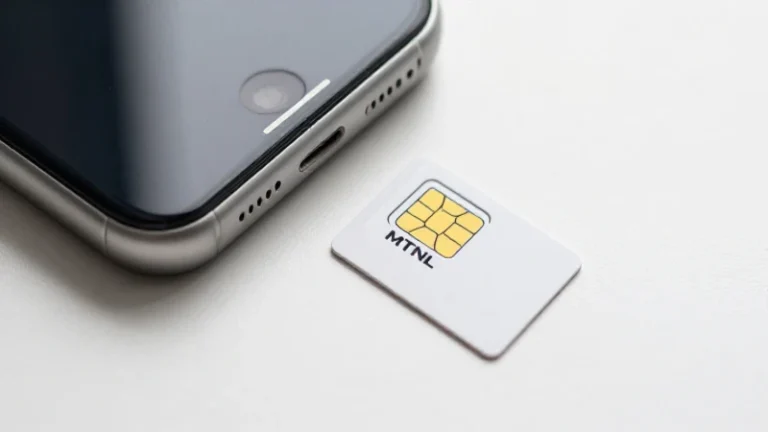
In today’s world, accessing the internet has become an integral part of our daily lives, especially through mobile devices. One of the most common ways to connect to mobile data is through the APN (Access Point Name) settings specific to your service provider. If you are a user of MTNL in India and own an iPhone, this guide will provide you with a comprehensive overview of the APN India MTNL GPRS settings for iPhone. By following this structured approach, you can ensure that your device is configured to take full advantage of the available mobile data services.
Steps to Configure APN India MTNL GPRS Settings on iPhone
Now that you understand the importance of proper APN settings, let’s go through the step-by-step process to configure the APN India MTNL GPRS settings for iPhone. This guide is suitable for various iPhone models, providing a universal approach to setting up your device.
Step 1: Access Settings on Your iPhone
The first step in configuring the APN India MTNL GPRS settings for iPhone is to navigate to the Settings app on your iPhone. The Settings app is typically represented by a gear icon and can be found on your home screen or in the App Library. Once you open the Settings app, you will see various options for configuring different aspects of your device.
Step 2: Select Cellular
Within the Settings menu, look for the option that says «Cellular» or «Mobile Data.» Tapping on this option will take you to the next screen, which allows you to manage your mobile data settings. This is where you will configure the APN settings for your MTNL mobile plan.
Step 3: Access Cellular Data Options
Once you are in the Cellular settings, you will find an option labeled «Cellular Data Options.» Tap on this option to reveal additional settings that pertain specifically to your mobile data connection. This is an essential step in finding the area where you can edit your APN settings.
Step 4: Configure APN Settings
In the Cellular Data Options menu, look for the «APN» section. Here, you will be able to enter the required settings for MTNL. The information that you need to input includes:
- APN: mtnl.net.in
- Username: (leave blank)
- Password: (leave blank)
It’s essential to enter the APN accurately since any discrepancies can hinder your ability to access mobile data.
Step 5: Save and Test the Settings
After entering the necessary details for the APN India MTNL GPRS settings for iPhone, ensure that you save the changes. Depending on the iOS version of your iPhone, you may need to exit the settings as it often automatically saves the configurations. To test if the settings have been applied correctly, try accessing a website or using an app that requires mobile data. If everything is functioning properly, you should have internet access without any issues.
Troubleshooting APN Issues
Even after entering the correct APN India MTNL GPRS settings for iPhone, you may encounter some issues. Below are common problems and troubleshooting steps to help resolve them.
Why Can’t I Connect to Mobile Data?
If you are unable to connect to mobile data with the MTNL settings, consider the following reasons:
- Incorrect APN Configuration: Double-check that the APN settings entered match the required MTNL specifications.
- Network Coverage: Ensure you are in an area with MTNL network coverage. Poor connectivity can prevent you from accessing mobile data.
- Data Plan Validity: Verify that your mobile data plan is active and has not expired.
How to Reset Network Settings
If you continue to experience issues after verifying your APN settings, consider resetting your network settings. This will remove existing configurations and restore the default settings. To reset your network settings:
- Open the «Settings» app on your iPhone.
- Tap on «General.»
- Scroll down and select «Transfer or Reset iPhone.»
- Choose «Reset.»
- Select «Reset Network Settings.» You may need to enter your passcode to proceed.
Once the reset is complete, you will need to re-enter the APN India MTNL GPRS settings for iPhone again.
Contacting MTNL Customer Support
If all troubleshooting steps fail, it may be beneficial to contact MTNL customer support. They can provide further assistance and verify if any issues exist on their end that may affect your mobile data connection. Having your account details handy will speed up the process and ensure you receive the appropriate help.
Setting up the correct APN India MTNL GPRS settings for iPhone is essential for ensuring that you enjoy seamless internet connectivity with your MTNL service. By following the detailed steps outlined in this guide, you can configure your iPhone effectively, troubleshoot any issues that may arise, and maximize your online experience. Whether you are browsing the web, streaming videos, or using social media, having the right settings in place makes all the difference. Remember, technology can be tricky at times, but with the right guidance, you can navigate the intricacies of mobile data connectivity with ease.