When it comes to mobile connectivity, the right APN settings play a crucial role, especially for users in Nepal who rely on NTC services. The APN Nepal NTC APN settings for Android are vital for ensuring that your device can connect smoothly to the internet. From ensuring proper data connectivity to enabling multimedia messaging services, understanding your APN settings can enhance your mobile experience significantly. In this comprehensive guide, we will explore the various aspects of setting up your APN on Android devices, including detailed instructions, troubleshooting tips, and much more.
How to Configure APN Nepal NTC Settings on Android
Setting up your APN Nepal NTC APN settings for Android is a straightforward process. Follow these steps to ensure your device is correctly configured:
Step-by-Step Guide
- Open Settings: Begin by navigating to the settings on your Android device.
- Go to Network & Internet: Click on ‘Network & Internet’ to access mobile network settings.
- Mobile Network: Choose ‘Mobile Network’ and select the option for APN settings.
- Add New APN: Tap on the ‘Add’ icon (usually a plus sign) to create a new APN entry.
Inputting NTC APN Details
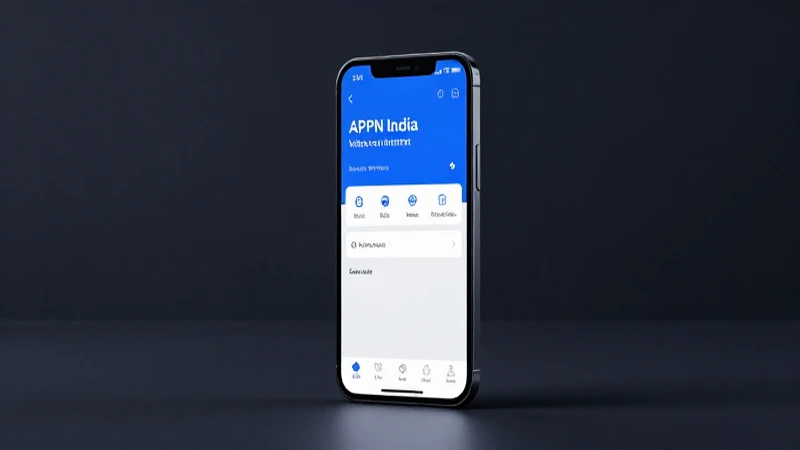
With the new APN entry open, you can input the following APN Nepal NTC APN settings for Android:
- Name: NTC Data
- APN: internet.ntc.net.np
- Username: (leave blank)
- Password: (leave blank)
- MMSC: http://mms.ntc.net.np
- MMS Proxy: 10.151.0.1
- MMS Port: 80
- Authentication Type: None
- APN Type: default,mms,supl
Saving the Configuration
After entering all the details, be sure to save this configuration. You can do this by tapping on the three-dot menu or save icon, usually found in the upper right corner of the screen. Once saved, you can select this APN as your active profile to enable internet access.
Testing Your Connection
Now that your APN Nepal NTC APN settings for Android are saved, it’s time to test the connection. Make sure you have a strong mobile signal and try connecting to the internet or sending an MMS to ensure that everything is set up correctly.
Troubleshooting Connection Issues
If you find yourself experiencing issues despite your correct configuration, don’t get frustrated. First, ensure that mobile data is enabled on your device. If it’s already on, try turning it off and then back on again. You could also try restarting the device to refresh its settings and connections. If you still have problems, double-check the details you entered for any typos or missing information in your APN Nepal NTC APN settings for Android.
Common APN Issues and Solutions
Encountering problems with APN settings can be common, especially when switching devices or carriers. This section will outline some prevalent issues and their solutions.
Slow Internet Connection
If your internet speed is subpar, verify that you have the correct APN settings. It’s helpful to go back and cross-check the APN Nepal NTC APN settings for Android detailed earlier. Ensure that the ‘APN Type’ includes ‘default’. You should also consider testing your connection in different locations to rule out local network congestion.
Unable to Send MMS
Experiencing difficulty in sending multimedia messages is another common issue. For this, closely look at your MMSC and MMS proxy settings. Incorrect URLs or ports can hinder the transmission of MMS. Adjust them and verify under ‘Mobile Network’ settings to ensure everything is accurate and saved.
No Internet Connection
If you find that you cannot connect to the internet at all, this could be due to several factors. First, confirm that your mobile data is active. If it is and connectivity remains elusive, try resetting your network settings. This will revert APN settings and data network configurations to default, allowing you to start fresh.
Setting up the APN Nepal NTC APN settings for Android is an essential step in ensuring smooth mobile connectivity. With this comprehensive guide, you should now have a better understanding of how to configure these settings, understand the components involved, and troubleshoot common issues that may arise. Properly configured APN settings not only improve your internet experience but also ensure that you can fully utilize the mobile features offered by your device. Whether you are sending messages, browsing the internet, or using apps, having the right configuration in place is key. Always take some time to periodically check these settings if you experience connectivity issues to ensure that you stay connected.