In the modern digital world, connectivity is vital. Whether you are using your device for social networking, streaming videos, or professional communication, having the correct APN settings is crucial for a seamless mobile data connection. This article focuses on the APN Southafrica MTN APN settings for Android Galaxy HTC. Here we will delve into how these settings work, how to configure them on your device, and common troubleshooting steps to ensure optimal performance. With detailed instructions and extensive explanations, you will find everything you need to set up your device for the best network experience in South Africa.
Getting Started: How to Find Your MTN APN Settings
Official MTN APN Settings
Before you start configuring your device, it is good to know what the official MTN settings are. The following settings are typically used for MTN services in South Africa:
- Name: MTN
- APN: internet
- Username: leave empty
- Password: leave empty
- MMSC: http://mms.mtn.co.za
- MMS Proxy: 196.2.200.200
- MMS Port: 80
- MCC: 655
- MNC: 01
- Authentication Type: none
Make sure to double-check these values before entering them into your device’s settings, as minor errors can disrupt your connectivity.
Configuring APN Settings on Android Devices
Step-by-Step Instructions for Android Galaxy HTC
The process for modifying your APN settings may differ slightly based on your Android version, but the steps are generally consistent across most devices, including the Galaxy and HTC ranges:
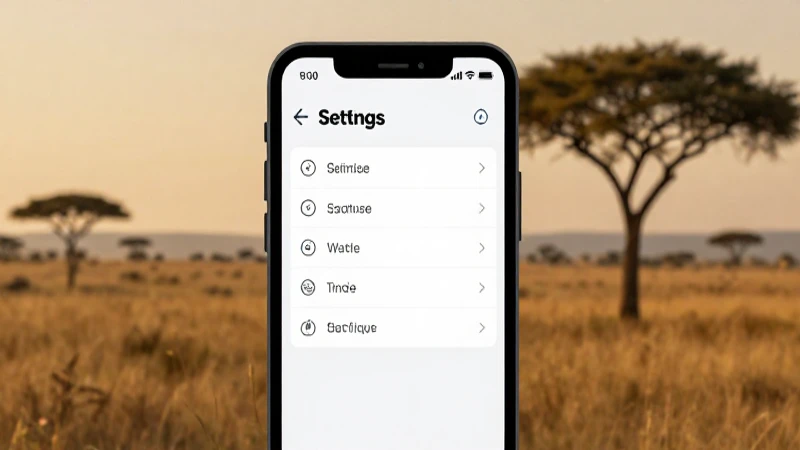
- Open Settings: Begin by navigating to the ‘Settings’ app on your Android device.
- Network & Internet: Look for an option labeled ‘Network & Internet’ or ‘Connections’ and tap on it.
- Mobile Network: Select ‘Mobile Network’ or ‘Cellular Network’ settings.
- Access Point Names: Tap on ‘Access Point Names’. Here you can either modify an existing APN or create a new one by pressing the ‘+’ sign.
- Enter MTN APN Settings: Fill in the relevant fields with the official APN Southafrica MTN APN settings for Android Galaxy HTC provided earlier.
- Save Settings: After entering the information, save your settings. You may need to select it as your default APN.
- Restart Device: For the changes to take effect, restart your device.
By following these steps, your Android Galaxy HTC should be able to connect to the internet via MTN’s mobile data network, enabling you to surf the web, send messages, and use apps seamlessly.
Troubleshooting Common Issues with APN Settings
Issue: No Mobile Data Connection
If you find that you have entered the correct APN Southafrica MTN APN settings for Android Galaxy HTC but are still unable to connect to the internet, there are a few troubleshooting steps you can take:
- Check Coverage: Ensure you are in an area with cell coverage. Sometimes the issue is simply due to poor signal strength.
- Network Selection: Go to ‘Network Operators’ and confirm that your device is set to connect to the MTN network automatically or select it manually.
- Restart Your Device: A simple restart can often resolve connectivity issues.
- Reset APN Settings: If all else fails, try deleting the APN you created and re-entering it again.
Issue: Unable to Send MMS
Sending MMS can be a common issue when the APN settings are not configured correctly. Here are steps to troubleshoot this issue:
- MMS Settings: Ensure that you have entered the correct MMSC, MMS Proxy, and MMS Port in your APN settings.
- APN Type: Make sure that the APN type is correctly labeled as ‘default,supl,mms’.
- Check Data Connection: Ensure your mobile data connection is active, as MMS uses mobile data to send messages.
Why Might Your APN Settings Reset?
Sometimes your device may reset the APN settings due to software updates or carrier policy changes. If you notice a sudden disruption in service, it may be wise to check if your APN settings have reverted to default. Always keep a saved note of your desired APN Southafrica MTN APN settings for Android Galaxy HTC so you can quickly re-enter them if necessary.
Bonus Tips for Optimizing Your MTN Experience
Keep Your Device Updated
Regularly updating your Android device ensures that you receive the latest software enhancements and security patches. These updates can also improve your device’s compatibility with network settings, helping to maintain a stable connection. Be sure to regularly check for software updates in your device’s settings to keep your device in top condition.
Consider Resetting Network Settings
If you’ve tried everything and are still experiencing issues with your connection, one option is to reset your network settings. This action will erase all saved networks and revert APN settings to their default entries. Always remember to write down your custom settings before performing this step:
- Go to ‘Settings’.
- Then, select ‘System’ or ‘General Management’.
- Now, look for ‘Reset Options’ and choose ‘Reset Network Settings’.
- After resetting, you will need to re-enter your APN Southafrica MTN APN settings for Android Galaxy HTC.
Having the correct APN Southafrica MTN APN settings for Android Galaxy HTC is essential for accessing mobile data and ensuring that your device operates smoothly. This comprehensive guide has covered everything from understanding APN settings to step-by-step configuration instructions and troubleshooting common issues. By following the outlined instructions, users can enjoy a seamless mobile experience with MTN in South Africa. Remember to keep your settings documented and perform regular checks to ensure your connectivity remains uninterrupted. As technology evolves, staying informed about updates and changes in settings will help ensure that you continue to enjoy the best possible service from your device.