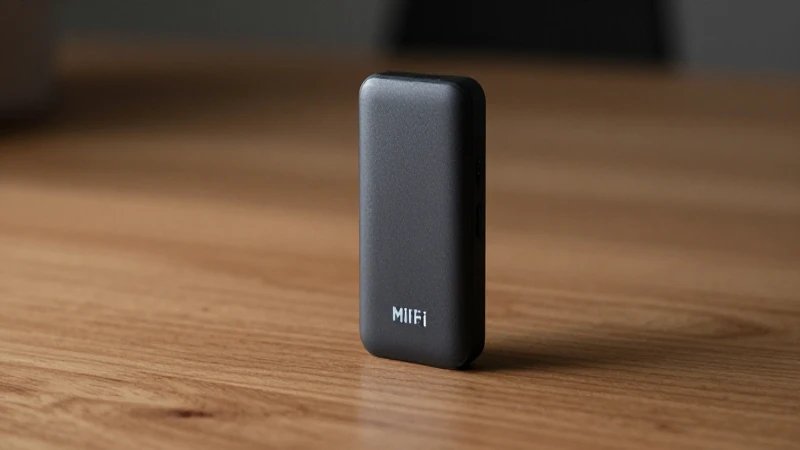
When it comes to staying connected in the UK, APN settings play a crucial role in ensuring that your MiFi device operates smoothly and effectively. If you are using a MiFi device from Three, understanding the specific APN UK Three MiFi settings can help you optimize your mobile data experience. This comprehensive guide will delve into all aspects of accessing and configuring your APN settings, enabling seamless internet connectivity for your device.
Configuring APN Settings on a Three MiFi Device
Setting up your APN UK Three MiFi settings can vary slightly depending on the specific model you have. However, the following steps outline the general process:
Step 1: Access the Admin Interface
To begin configuring your settings, you need to access the admin interface of your MiFi device. Connect your computer or smartphone to the MiFi network, and open a web browser. Enter the default IP address for your device, typically 192.168.1.1 or 192.168.0.1, into the address bar and hit enter. This will take you to the login page of your MiFi device.
Step 2: Log In to Your Account
Log into your MiFi device using the default credentials. These are often found in the user manual or on a label on the device itself. If you haven’t changed the default password, it may still be set to something generic like “admin” or “password.” Once logged in, you’ll be directed to the dashboard.
Step 3: Locate APN Settings
After logging in, navigate to the settings menu. Look for options labeled ‘Network’, ‘Mobile Network’, or ‘APN Settings.’ The exact naming can vary, so you may need to explore a bit. Here, you can view existing APN configurations and make adjustments.
Inputting APN Settings for Three UK
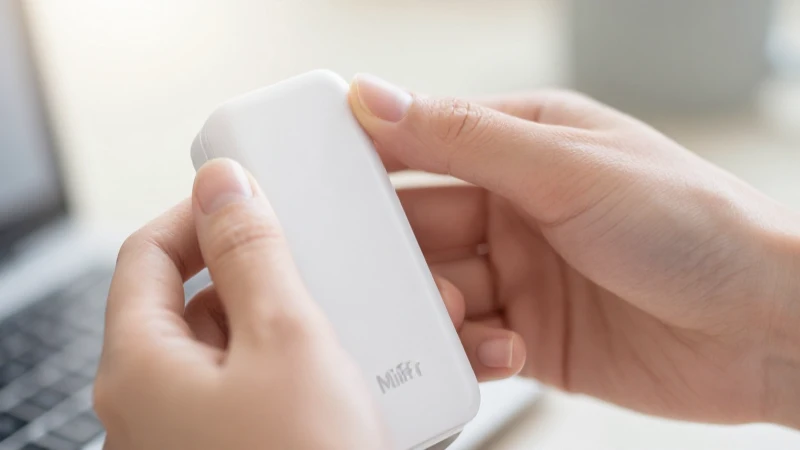
Once you have located the APN settings section, you need to enter the correct information for APN UK Three MiFi to ensure proper functionality. Below are the recommended settings:
APN Name
For Three UK, the APN name should be set as three.co.uk. This is crucial as it directs your MiFi device to the right network services.
Username and Password
In most cases, the username and password fields can be left blank for Three UK. This is a common practice for many mobile networks and should work without issues.
MMSC, MMS Proxy, and Port
For those who may require MMS messaging, make sure to set the following for the APN UK Three MiFi:
- MMSC: http://mms.um.three.co.uk:10021/mms/wapenc
- MMS Proxy: 212.183.137.12
- MMS Port: 8799
Saving Your Settings
Once you have accurately entered your APN settings, be sure to save your configuration. There should be a “Save” or “Apply” button at the bottom of the page. After saving, your device may prompt you to reboot or restart to apply the changes effectively.
Testing Your Connection

After successfully configuring your APN UK Three MiFi settings, it’s essential to test your connection to ensure everything is working as expected. Disconnect from the MiFi network and reconnect. Open your web browser and try accessing a few websites to verify internet connectivity. If you can browse the web without issues, your MiFi is configured correctly.
Troubleshooting Common Issues
Even with the correct APN UK Three MiFi settings, you may encounter connectivity issues. Here are some common problems and how to troubleshoot them:
Cannot Connect to the Internet
If your MiFi device does not connect to the internet, double-check that the APN settings were entered correctly. Ensure that you have saved the settings and rebooted your device if necessary. Additionally, confirm that your device has an active data plan or is within coverage.
Slow Internet Speed
Slow connection speeds can be frustrating. Ensure you are located in an area with strong Three signal. If possible, conduct a speed test during different times of the day to see if congestion may be affecting your speeds. Sometimes, a reset of the device can also help improve performance.
MMS Issues
If you are having trouble sending or receiving MMS messages, revisit your APN UK Three MiFi settings. Make sure all required fields regarding MMS, including MMSC, MMS Proxy, and MMS Port, are correctly set. You may also need to reboot your device after changes have been made.
Alternative APN Settings
While the aforementioned settings should work for most users, some individuals may require adjustments based on unique needs. Here are some alternative settings that might be useful in certain scenarios:
Using IPv6
Some users prefer to configure their devices to use IPv6 settings, which is becoming increasingly common. Check if your device supports IPv6 configurations and if needed, input the corresponding IPv6 APN details provided by Three.
Roaming APN Settings
If you plan to use your MiFi device while roaming internationally, ensure your roaming settings are enabled in your account. You may also require additional APN settings which can be provided by Three’s customer service, depending on the country you are visiting.
Final Considerations
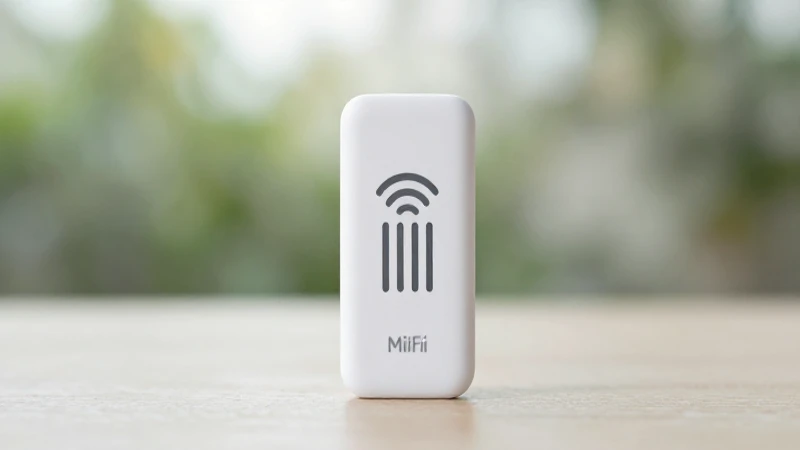
In conclusion, having accurate and up-to-date APN UK Three MiFi settings is essential for maximizing your device’s potential and ensuring reliable internet access. Whether you are on the go for business or leisure, a correctly set MiFi can keep you connected and productive. Regularly check your APN configurations, especially after software updates or if you experience any connectivity issues. Understanding and managing these settings will empower you to make the most out of your mobile data experience.