Understanding APN US Consumer Cellular APN settings for iPhone is essential for optimizing your mobile data experience. Access Point Names (APNs) act as gateways between your mobile network and the internet, determining how your iPhone connects to the network and retrieves data services. When using a carrier like Consumer Cellular in the United States, proper APN configurations ensure you can access the internet, MMS, and other data services seamlessly. In this extensive guide, we will delve into the details of APN settings specifically tailored for Consumer Cellular users on iPhones, exploring their significance, how to configure them, and troubleshooting tips for any potential issues that may arise.
Understanding Consumer Cellular’s Network
To successfully configure your iPhone’s APN US Consumer Cellular APN settings, it’s essential to comprehend how Consumer Cellular operates. Consumer Cellular primarily uses T-Mobile and AT&T networks for its services, meaning users can benefit from extensive coverage and reliable connectivity. This dual-band access provides flexibility, but it also means users need to ensure their device configurations match the correct settings for their respective network access points.
Both T-Mobile and AT&T have distinct APN settings. However, if you are a Customer Cellular subscriber, you typically follow a specific set of instructions tailored to integrate with these networks. In the following sections, we will detail the essential settings you need to implement on your iPhone for optimal performance.
How to Manually Configure APN Settings on iPhone
Step-by-Step Guide to Accessing APN Settings
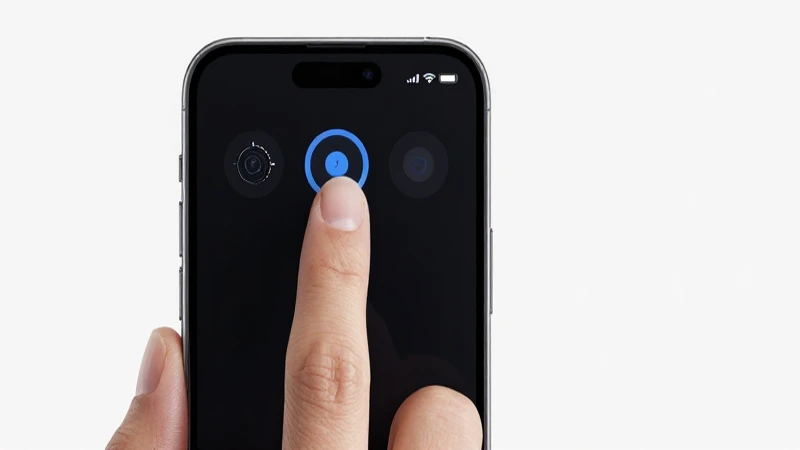
Configuring the APN US Consumer Cellular APN settings for iPhone can be done directly through your device’s settings menu. Here’s a comprehensive step-by-step guide to accessing and modifying these settings to ensure you have the correct configurations:
- Open Settings: Locate the Settings app on your iPhone. It is typically represented by a gear icon.
- Tap on Cellular: Once in Settings, scroll down and select ‘Cellular’ or ‘Mobile Data’.
- Select Cellular Data Options: Here, you will find various options regarding mobile data services.
- Access APN Settings: Within the Cellular Data Options, tap on ‘Cellular Data Network’. This will lead you to the APN configuration settings.
Entering the APN Values
Once you have accessed the APN US Consumer Cellular APN settings for iPhone configuration page, the next step involves entering the correct values. Below are the fields you will need to populate:
- APN: Consumer settings generally use «fast.t-mobile.com» for T-Mobile or «att.mvno» for AT&T. However, it’s best to confirm with Consumer Cellular’s latest guidelines.
- Username: Leave this blank unless specified by your carrier.
- Password: Similarly, this field is typically left blank.
- MMSC (Multimedia Messaging Service URL): Enter «http://mmsc.mobile.att.net».
- MMS Proxy: Set this to «proxy.mobile.att.net».
- MMS Port: Enter «80» for AT&T configurations.
Once all fields have been filled out based on Consumer Cellular’s requirements, ensure that you double-check the entries for accuracy, as incorrect configurations can prevent proper data connectivity.
Saving the APN Settings
After you’ve inputted the correct information into the corresponding fields, the next step is to save your changes. iPhones typically save settings automatically when you navigate away from the APN configuration screen; however, it is advisable to restart your device afterward to ensure that the new configurations take effect. This small step can often resolve lingering connectivity issues.
Verifying Your APN Settings
How to Check if Your APN Settings are Correct
After configuring your APN US Consumer Cellular APN settings for iPhone, it is essential to verify if the settings are working correctly. To check, try the following methods:
- Test Mobile Data: Open your web browser and try to access a page such as Google or any preferred website. If the page loads successfully, your mobile data is functioning.
- Send an MMS: Attempt to send a multimedia message (MMS) to another device. If the message sends without errors, your MMS settings are correctly configured.
- Use Cellular Services: Try to use apps that require internet connectivity, like social media apps or streaming services, to validate that mobile data is working as intended.
Troubleshooting Common APN Issues
If you encounter any issues after setting the APN US Consumer Cellular APN settings for iPhone, don’t panic. Various common problems can be resolved by following a few troubleshooting steps:
- Double-Check APN Settings: Ensure that all entries are accurately filled in without typographical errors.
- Reset Network Settings: Navigating to Settings > General > Transfer or Reset iPhone > Reset > Reset Network Settings can sometimes resolve lingering issues.
- Restart Your Device: As previously mentioned, restarting your iPhone can help adapt to the new settings.
- Check for iOS Updates: Outdated software can cause connectivity problems. Check under Settings > General > Software Update to see if there are any pending updates.
In conclusion, managing your APN US Consumer Cellular APN settings for iPhone is a straightforward yet critical task for ensuring that your device remains connected to the internet and capable of utilizing the mobile data services you need. By following the steps detailed above, from accessing the settings menu to troubleshooting common issues, you can optimize your iPhone for the best possible performance on the Consumer Cellular network. Don’t forget to periodically revisit your settings to stay updated with any changes Consumer Cellular might implement, so your connectivity remains uninterrupted. Following this guide will empower you to control and enhance your mobile experience effectively.