The settings for APN US Solavei APN settings for iPhone are essential for ensuring that your mobile device can access the internet and send multimedia messages (MMS) correctly. In an era where connectivity is paramount, having the right Access Point Name (APN) settings can significantly enhance your user experience on Solavei’s network. This article aims to provide you with a comprehensive guide on configuring your APN settings on your iPhone to ensure that it functions optimally.
How to Access APN Settings on iPhone
Adjusting the APN US Solavei APN settings for iPhone is a straightforward process. All you need is your iPhone, and you can follow these steps to access the settings:
- Open the Settings app on your iPhone.
- Scroll down and tap on Cellular.
- Tap on Cellular Data Options.
- Then select Cellular Network.
Once you are in this section, you’ll be able to view and modify the APN settings necessary for the Solavei network.
Key APN Settings for Solavei
To effectively connect to the internet via Solavei, you need to enter specific APN settings. Below are the recommended values to input in your iPhone:
- APN: fast.t-mobile.com
- Username: leave blank
- Password: leave blank
- MMS APN: fast.t-mobile.com
- MMS Username: leave blank
- MMS Password: leave blank
- MMS Proxy: 216.155.165.50
- MMS Port: 80
It’s crucial to ensure that each of these values is correctly inputted to ensure proper functionality of your mobile data and MMS messaging services.
Detailed Walkthrough for Inputting APN Settings on iPhone
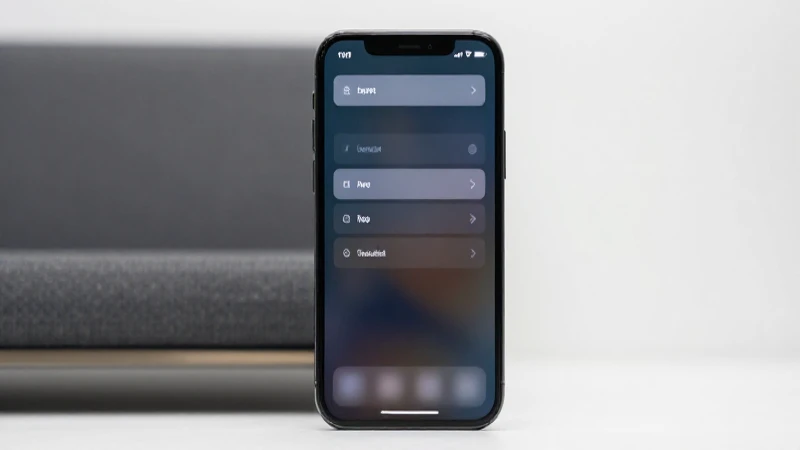
Step-by-Step Guide
Now, let’s go through the detailed process of inserting the APN US Solavei APN settings for iPhone. Follow these steps closely to avoid any misconfigurations:
- Once you have navigated to the Cellular Network section, locate the APN field.
- Enter fast.t-mobile.com in the APN field.
- Leave the Username and Password fields empty; it is critical that any boxes left blank are untouched.
- Move to the MMS APN field and enter fast.t-mobile.com again.
- As before, ensure that the MMS Username and MMS Password are left blank, maintaining the necessary settings for Solavei.
- Enter 216.155.165.50 in the MMS Proxy field.
- Lastly, set the MMS Port to 80.
After filling in all relevant fields, double-check each entry to ensure that there are no typographical errors or omissions. A minor mistake can lead to connectivity issues.
Verifying APN Settings Functionality
Testing Your Connectivity
Once you have entered the APN US Solavei APN settings for iPhone, it’s important to verify that everything is functioning properly. Here are some ways you can test your settings to ensure connectivity:
- Try accessing a web page using Safari or your browser of choice. A successful load would indicate proper internet settings.
- Test sending a text message with an attached image to verify that MMS services are working as intended.
- Use social media apps or any instant messaging services that require internet functionality to check connectivity.
If you encounter any issues during these tests, you may need to revisit your APN US Solavei APN settings for iPhone to ensure that everything is correct. It may also be helpful to restart your device after making changes to implement the settings fully.
Troubleshooting Common Issues
Issues with No Connectivity
Experiencing connectivity problems after configuring your APN US Solavei APN settings for iPhone can be frustrating. Below are troubleshooting steps to help resolve common issues:
- Ensure that your mobile plan is active and that you have not exceeded any data limits.
- Turn off your device and then turn it back on. This action can clear temporary issues affecting connectivity.
- Double-check that the APN settings have been input correctly. Even a small error can prevent connectivity.
- Reset Network Settings: If you continue to experience issues, try resetting your network settings by going to Settings > General > Reset > Reset Network Settings. Note that this will also erase saved Wi-Fi passwords.
MMS Issues
If you are unable to send or receive multimedia messages (MMS), you can take the following additional steps:
- Verify that you have correctly entered the MMS proxy and port settings.
- Check if your device’s cellular data is enabled, as MMS requires a data connection.
- Confirm that you are using a device compatible with the Solavei network, as some older models may have issues.
Frequently Asked Questions (FAQ)
What is APN?
APN stands for Access Point Name, and it serves as a bridge between your mobile network and the internet or other networks. It is crucial for setting up mobile data connections and multimedia messaging services.
Are APN settings the same for all carriers?
No, each carrier has its own unique APN US Solavei APN settings for iPhone that must be configured to access their specific mobile data and services correctly.
How often do I need to change APN settings?
You typically do not need to change your APN settings often; however, if you switch carriers or if your current carrier updates their network configuration, you may need new settings.
Can I use the internet without the correct APN settings?
While some services might work without correct APN settings, many functionalities will be severely limited. In general, incorrect settings may lead to a lack of internet connectivity or issues with MMS.
In conclusion, having the right APN US Solavei APN settings for iPhone is vital for optimal mobile connectivity. This guide has walked you through the essential steps on how to configure your APN settings and troubleshoot common issues that may arise. With the correct settings in place, you can enjoy seamless access to the internet and use your iPhone’s features without interruption. If you find that you’re still experiencing problems after following this guide, it may be worth reaching out to Solavei customer service for further assistance. Always ensure that your settings are up to date and double-check your configurations to make the most of your device’s capabilities.