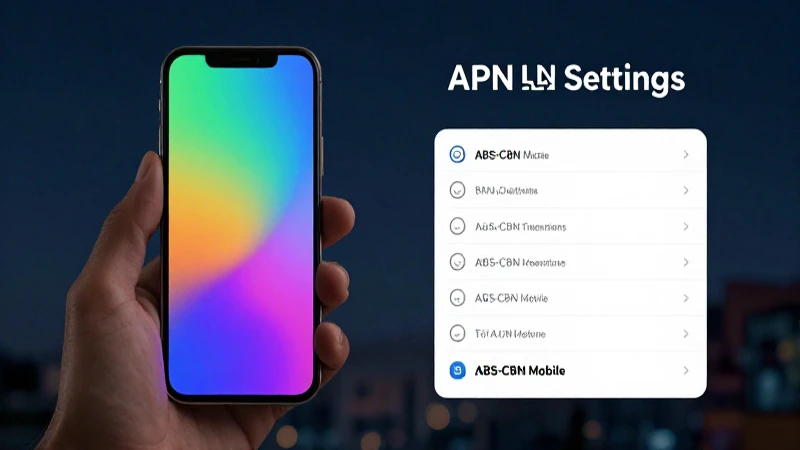
In today’s digital age, accessing the internet on our smartphones is a necessity, especially for iPhone users who rely heavily on their devices for communication and productivity. If you are using a Globe Telecom SIM card in the Philippines, having the correct APN Philippines Globe internet settings for iPhone is crucial to ensure that you can browse the web, stream videos, and stay connected without any interruptions. This comprehensive guide will walk you through everything you need to know about configuring your iPhone to effectively use Globe’s mobile data services.
Basic Overview of Globe Telecom
Globe Telecom is one of the leading telecommunications service providers in the Philippines. Known for its extensive network coverage and innovative mobile data solutions, Globe offers a variety of plans that cater to different customer needs. The company has made significant efforts to improve its network infrastructure, making it easier for users to access high-speed internet services. To fully benefit from these offerings, it is essential to have the right APN Philippines Globe internet settings for iPhone.
Types of Data Plans Offered by Globe
- Postpaid Plans: These plans are ideal for users who prefer a fixed monthly bill and want unlimited or high data limits, allowing them to browse, stream, and use apps without fear of running out of data.
- Prepaid Plans: Perfect for those who want flexibility, prepaid plans allow users to load their accounts with data as needed. This option is ideal for casual users who may not always need a constant internet connection.
- Promo Packages: Globe frequently offers special promotions that provide additional data allowances for a limited time, enabling users to maximize their internet usage during specific periods.
How to Access APN Settings on iPhone
To configure the APN Philippines Globe internet settings for iPhone, you first need to access the settings menu on your device. Here are the simple steps:
- Open the Settings app on your iPhone.
- Scroll down and tap on Cellular or Mobile Data depending on your iOS version.
- Select Cellular Data Options.
- Tap on Cellular Network or Mobile Data Network.
Inserting the APN Settings for Globe
Once you are in the Cellular Network settings, you can enter the necessary information to establish a connection with Globe’s network. Here’s a detailed breakdown of the requisite APN Philippines Globe internet settings for iPhone:
- APN: internet.globe.com.ph
- Username: (leave this blank)
- Password: (leave this blank)
- MMS APN: mms.globe.com.ph
- MMS Username: (leave this blank)
- MMS Password: (leave this blank)
- MMS Port: 80
Step-by-Step Guide to Configuring Settings
Entering Data and Saving Settings
After inputting the required information as listed above for the APN Philippines Globe internet settings for iPhone, ensure that you double-check for any errors. It is important that each entry is accurate to avoid connectivity issues. Once you are satisfied with the settings:
- Press the Back button to save the changes automatically.
- Exit the settings app by pressing the Home button or swiping up, depending on your iPhone model.
- Reboot your iPhone to ensure all changes take effect.
Testing Your Internet Connection
After you’ve successfully saved and configured the APN Philippines Globe internet settings for iPhone, it is crucial to test whether your device is now able to access the internet. To do this, perform the following steps:
- Disconnect from any Wi-Fi networks.
- Open your web browser and try accessing a website such as www.google.com.
- If the site loads successfully, your configuration was a success. If not, revisit the settings to confirm that everything is correct.
Troubleshooting Common Issues with APN Settings
Even with the correct APN Philippines Globe internet settings for iPhone, you may still experience some connectivity issues. Here are some common problems and their respective troubleshooting methods:
Cannot Connect to Internet
If you find that your iPhone cannot connect to the internet despite having set up the correct APN, try the following:
- Ensure that your mobile data is turned on by accessing the Settings > Cellular.
- Check if you have sufficient mobile data balance on your Globe account.
- Disable Airplane Mode if it’s activated.
- Restart your device and check connectivity again.
Slow Internet Speed
If your internet is slow, this can be frustrating. To troubleshoot, follow these steps:
- Restart your iPhone to refresh its connection to the network.
- Move to an area with better signal strength; obstacles like buildings, trees, and interference from electronic devices can affect speed.
- Ensure that your iPhone is not overloaded with background apps consuming data.
Issues with Sending MMS
Should you encounter problems sending multimedia messages (MMS), it could be due to incorrect MMS settings. Check the following:
- Verify that the MMS APN details are correctly entered as provided above.
- Ensure that you are connected to mobile data, as MMS cannot be sent over Wi-Fi.
- Confirm with Globe if there are any service outages affecting MMS functionality.
Resetting your Network Settings on iPhone
If the issues persist and you cannot resolve them, resetting your network settings can be beneficial. This will erase all stored Wi-Fi passwords and cellular settings but may help restore connectivity. To reset your network settings:
- Go to Settings.
- Select General.
- Scroll down and tap on Reset.
- Choose Reset Network Settings.
- Confirm your decision and wait for your phone to restart.
Changing APN Settings for Specific Use Cases

While the standard APN Philippines Globe internet settings for iPhone work for most users, there may be specific scenarios where you need to adjust your APN settings. Here are some unique cases:
Using Data Roaming
If you are traveling and wish to use data roaming services, you will need to adjust the APN settings slightly. Make sure to enable data roaming in your settings under:
- Settings
- Cellular
- Cellular Data Options
- Turn on Data Roaming.
Consult Globe’s customer service for the recommended APN settings to use while roaming abroad to avoid excessive charges.
Using Globe’s LTE Service
For users who wish to connect to Globe’s LTE network, ensure that you have the appropriate LTE settings. Typically, this requires ensuring that LTE is enabled in your device:
- Navigate to Settings.
- Tap on Cellular.
- Select Cellular Data Options.
- Choose Enable LTE and select your preferred option.
Contacting Globe Customer Support for Assistance
If you have exhausted all troubleshooting options and are still facing issues with your internet connection, do not hesitate to reach out to Globe Telecom’s customer support. They are equipped to assist you with any problems related to APN settings and network connectivity:
- Visit the Globe Telecom website for live chat support.
- Call their customer service hotline.
- Use the GlobeOne app to report your issues quickly.
Having the correct APN Philippines Globe internet settings for iPhone is essential for ensuring seamless internet connectivity. With the right settings and a clear understanding of how to troubleshoot common issues, you can enhance your browsing experience and make the most of your Globe Telecom service. Whether you are using your device for personal use or for business purposes, staying connected is more important than ever. By following this comprehensive guide, you will be prepared to handle any challenges that arise and enjoy the rich digital landscape that the internet offers.