When it comes to staying connected while in Switzerland, configuring the right APN settings for your mobile device is crucial. The APN, or Access Point Name, serves as the gateway for your mobile network, facilitating internet access and data services. In this article, we will delve deep into the APN Switzerland Swisscom CH settings, ensuring you understand how to optimize your device for seamless connectivity. This guide will provide extensive insights into what APNs are, their significance, and detailed instructions for configuring the Swisscom APN settings across various devices.
Checking Your Current APN Settings
How to Access APN Settings on Android Devices
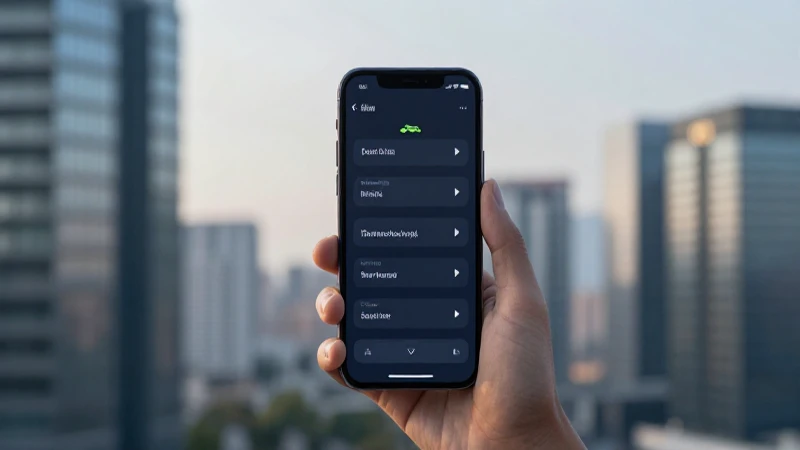
To check your existing APN settings on an Android device, follow these steps: Go to Settings > Network & internet > Mobile network > Advanced > Access Point Names. Here, you will see a list of APNs that are currently configured. It’s important to verify if the settings are correct or if they need to be adjusted to match the APN Switzerland Swisscom CH specifications.
How to Access APN Settings on iOS Devices
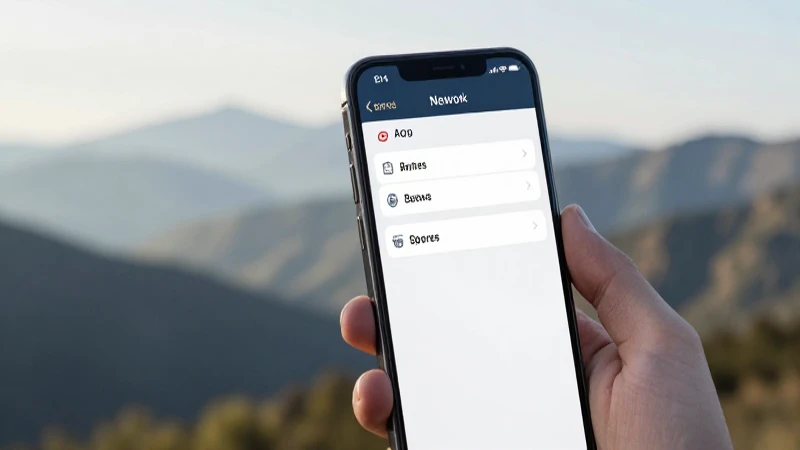
For iOS users, accessing APN settings is equally simple. Navigate to Settings > Cellular > Cellular Data Options > Cellular Network. You will find the fields for APN, Username, and Password. Ensure that these fields are filled according to the APN Switzerland Swisscom CH settings to guarantee a proper connection.
Configuring the APN Settings for Swisscom

APN Settings Overview for Swisscom
- APN: internet
- Username: leave blank
- Password: leave blank
- MMSC: http://mms.swisscom.ch/mms
- MMS Proxy: 10.1.1.1
- MMS Port: 80
- MCC: 228
- MNC: 01
- Authentication Type: None
- APN Type: default,supl,mms
- APN Protocol: IPv4/IPv6
Step-by-Step Configuration Process for Android
- Open your Settings app.
- Tap on Network & internet and then on Mobile network.
- Select Advanced and go to Access Point Names.
- Tap on the «+» icon to add a new APN.
- Input the APN settings as per the APN Switzerland Swisscom CH specifications detailed above.
- Save the new settings and select it as your active APN.
Step-by-Step Configuration Process for iOS
- Open the Settings application.
- Tap on Cellular and then reach Cellular Data Options.
- Go to Cellular Network and enter the APN settings according to the APN Switzerland Swisscom CH guide.
- Make sure to save your settings.
Troubleshooting Common APN Issues
Can’t Connect to the Internet?
If you find yourself unable to connect to the internet after configuring your APN Switzerland Swisscom CH settings, it’s essential to double-check the entered information. Ensure there are no typographical errors, particularly in the APN and proxy settings. Sometimes, simple mistakes can result in connectivity issues, so meticulous verification is key to resolving these problems.
Unable to Send or Receive MMS
Sending and receiving multimedia messages (MMS) is another area where APN settings play a significant role. If you’re facing difficulties with MMS, check that the MMSC, MMS Proxy, and MMS Port are correctly entered as specified under the APN Switzerland Swisscom CH configuration. Additionally, ensure that your device has the latest software updates, as these updates can improve compatibility and functionality.
Device-Specific Settings Adjustments
Some devices may require specific adjustments to work correctly with Swisscom’s network. For instance, Samsung devices often have additional fields or different naming conventions for APN settings. If you’ve verified that you’ve input the correct settings but still experience issues, it may be worthwhile to consult your device’s user manual or the Swisscom customer support for device-specific guidance.
Additional Features and Insights of Swisscom’s APN Settings
APN Types and Their Significance
The APN Switzerland Swisscom CH configuration includes different types of APNs for various use cases. In general terms, the APN type can determine how data is routed for different services like default, mms, and supl. The designation of “default” is used for typical internet browsing, while “mms” is explicit for multimedia messaging, and “supl” is commonly associated with location services. Understanding the significance of each type can help users optimize their experience based on their needs.
Optimizing Data Usage with APNs
By configuring the appropriate APN Switzerland Swisscom CH settings, users can also manage their data usage more effectively. For example, if you only want to use specific apps with mobile data access, you can set up APN settings that restrict background data usage or disable background app refresh, thereby controlling unnecessary data consumption which is especially crucial for those with limited data plans.
Roaming and APN Considerations
If you are traveling outside Switzerland but still wish to access mobile data, it’s important to check if Swisscom’s roaming features apply to your account plan. When traveling, your phone may automatically try to configure a new APN based on your location. Make sure to revert back to the APN Switzerland Swisscom CH settings upon returning to avoid unintended costs or connectivity issues related to incorrect settings.
In summary, configuring the APN Switzerland Swisscom CH settings is critical for ensuring optimal mobile connectivity in Switzerland. By understanding what APNs are, how to access and configure them, and how to troubleshoot common issues, you can significantly enhance your mobile internet experience. Whether you are a permanent resident or a tourist, knowing how to manage your mobile settings will empower you to stay connected without unnecessary hassle. Remember to always double-check your settings, and feel free to reach out to Swisscom customer support if you encounter any persistent issues. Staying connected in today’s digital world is essential, and having the right APN settings is the cornerstone of that connectivity.