When you own an iPad and are looking to connect it to the Internet seamlessly, it’s critical to set up your Access Point Name (APN) settings correctly. This is particularly vital for users in the United Arab Emirates (UAE) using the DU network. Correctly configuring the APN UAE DU iPad settings ensures that you can utilize mobile data for browsing, streaming, or any other online activities. This article serves as a comprehensive guide to help you navigate through these settings, ensuring your device operates optimally on the DU network.
How to Access APN Settings on Your iPad
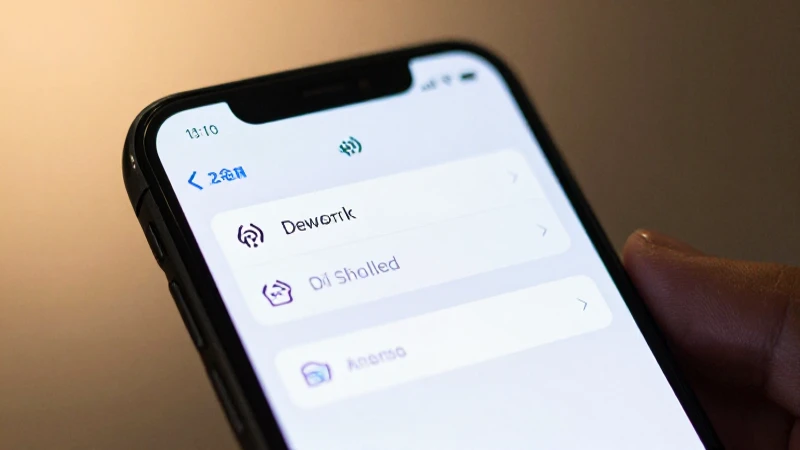
The process for accessing APN settings on an iPad is straightforward. Here’s a step-by-step guide to help you navigate through the settings:
- Open the Settings App: Start by tapping on the «Settings» icon, usually found on your home screen.
- Tap on Cellular: Scroll down and select «Cellular» to access your cellular settings.
- Select Cellular Data Network: You will find an option titled «Cellular Data Network,» tap on it to access the APN settings.
Once you’re in the “Cellular Data Network” section, you will see fields to enter your APN information, which is crucial for your APN UAE DU iPad configuration.
DU APN Settings for iPad
For users of DU in the UAE, appropriate APN settings must be configured to enable mobile data. Here are the exact settings you need:
- APN: du.ae
- Username: Leave this field blank
- Password: Leave this field blank
- MMS APN: du.mms
- MMSC: http://mms.du.ae:8002
- MMS Proxy: 10.5.1.1:8080
- MMS Max Message Size: 1048576
After filling in these fields, remember to double-check for any typos or mistakes. This meticulous attention to detail can often determine whether your APN UAE DU iPad settings will function properly or not.
How to Save APN Settings
Once you have entered all necessary information, you need to ensure that the APN UAE DU iPad settings are saved. Typically, you can exit the settings menu and your changes will automatically be saved. However, if you want to triple-check, it can be a good idea to go back to the “Cellular Data Network” section to confirm that your configurations are still intact. Saving these settings is pivotal, as they will enable you to connect to the DU network without encountering further issues.
Common Issues with APN Settings
Despite following the provided guidelines, users may still encounter issues with connectivity. Here are a few common problems related to APN UAE DU iPad settings and how to resolve them:
No Internet Connection
If you’re experiencing a lack of Internet connectivity after configuring your APN settings, ensure that cellular data is enabled on your device. You can verify this by going back to the «Cellular» menu in Settings and checking if the toggle for “Cellular Data” is turned on. If it’s switched on and you’re still facing issues, restarting your iPad might also help reset any unstable connections.
Slow Internet Speed
Slower-than-usual Internet speeds can be frustrating, particularly when you have configured everything accurately. Sometimes, this could be due to network congestion or poor signal reception in your area. If you consistently notice slow speeds, you may want to test your connectivity in different locations or contact DU customer support for further assistance.
Unable to Send MMS
If you find yourself unable to send or receive multimedia messages (MMS), you may need to double-check the MMS APN settings. Confirm that the MMSC and MMS proxy settings are accurately entered. Occasionally, it might also involve checking whether your iPad is compatible with sending MMS – this can sometimes depend on your iOS version or specific iPad model.
Advanced Troubleshooting for APN Settings
Even after configuring everything correctly, users may encounter additional setbacks. Here are some advanced troubleshooting steps you can take for your APN UAE DU iPad:
Reset Network Settings
If problems persist, consider resetting your network settings. This action will revert all network-related settings to their original defaults. To reset network settings, navigate to Settings > General > Reset > Reset Network Settings. Note that doing this will require you to re-enter your Wi-Fi passwords, but it can also eliminate any conflicting settings related to your APN UAE DU iPad.
Check for Software Updates
It is essential to ensure that your iPad’s operating system is up-to-date. Apple frequently releases updates that fix bugs and improve overall system performance. By going to Settings > General > Software Update, you can see if there are any available updates. Keeping your device updated is crucial for maintaining optimal functionality, including APN settings.
FAQs about APN Settings for DU iPad
What is the APN for DU in UAE?
The APN for DU in UAE is simply du.ae. This is the primary setting required for establishing a connection to the Internet using cellular data on your DU network-enabled devices.
Why do I need to configure APN settings manually?
Automatic configuration of APN settings is not always guaranteed, especially when switching between different service providers. This is particularly true when you insert a new SIM card into your device. Manually configuring the APN UAE DU iPad settings allows users to ensure that their device is using the correct parameters for connecting to the DU network.
Will configuring APN settings affect my data plan?
No, configuring your APN UAE DU iPad settings does not affect your data plan. Your data plan is determined by your service agreement with DU. However, incorrect APN settings can lead to connectivity issues that may affect how and when you can use your allotted data.
Understanding and configuring the correct APN UAE DU iPad settings is essential for any iPad user wanting to optimize their mobile internet experience in the UAE. By following the detailed instructions provided, you can set up your device quickly and address common issues that might arise along the way. Properly configured APN settings not only enhance your browsing capabilities but also ensure you’re getting the most out of your DU data plan. If you continue to face challenges, don’t hesitate to reach out to DU’s customer support for further assistance. With a little diligence, you can ensure seamless connectivity on your iPad, allowing you to stay connected wherever you are in the beautiful UAE.