When it comes to utilizing your iPhone to its fullest potential, one of the essential factors is the correct configuration of your Access Point Name (APN) settings. For users in the United States using AT&T as their mobile service provider, having accurate APN US AT&T APN settings for iPhone can greatly enhance your internet connectivity and overall smartphone experience. In this article, we will delve deep into understanding APN settings, their importance, and how to effectively configure them for your iPhone.
How to Check APN Settings on Your iPhone
To begin, you may want to check your current APN settings on your iPhone. Knowing your existing settings can help you troubleshoot connectivity issues or verify that you’ve made changes correctly. Follow these steps:
- Open the Settings app on your iPhone.
- Navigate to Cellular.
- Select Cellular Data Options.
- Tap on Cellular Network.
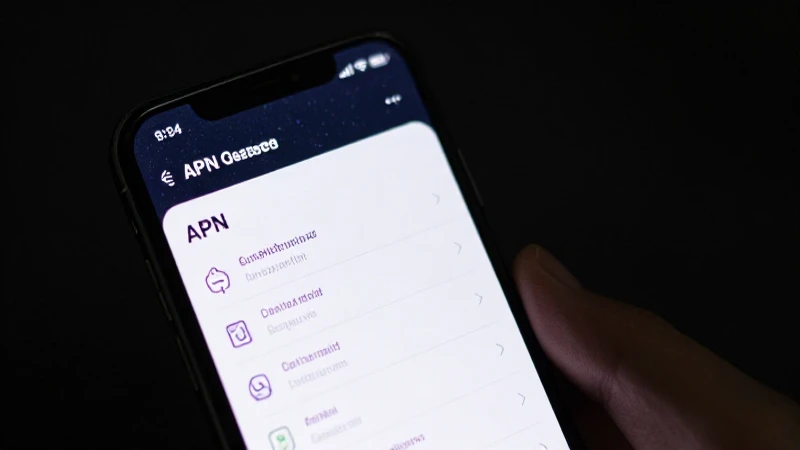
Once you are in the Cellular Network section, you will see fields for various settings including APN, username, and password. Here, you can compare or replace the values with the correct APN US AT&T APN settings for iPhone.
Default AT&T APN Settings for iPhone
Before we outline the specific settings you should enter, here’s a brief overview of the default APN US AT&T APN settings for iPhone that AT&T recommends:
- APN: phone
- Username: Leave blank
- Password: Leave blank
- MMS APN: mmsc.mobile.att.net
- MMS Proxy: proxy.mobile.att.net:80
- MMS Max Message Size: 1048576
- MMS UA Prof URL: http://device.att.com/html/ua-profile.xml
These parameters are critical for enabling both standard data connectivity and MMS, ensuring that media messages can be sent and received without any hindrance.
How to Set Up APN Settings on Your iPhone
Now that you know the default settings, it’s time to set them up correctly on your device. Here are the steps you should follow to input the APN US AT&T APN settings for iPhone:
- Access the Settings app on your iPhone.
- Tap on Cellular and then select Cellular Data Options.
- Click on Cellular Network.
- In the APN field, enter phone.
- Leave the Username and Password fields blank.
- For MMS settings, fill out the MMS APN, MMS Proxy, MMS Max Message Size, and MMS UA Prof URL as mentioned above.
- After entering all details, exit Settings to save your changes.
Mistakenly configured APN settings can lead to unwanted issues such as slow internet speeds or inability to send/receive messages. Therefore, careful configuration is crucial.
Troubleshooting Common Issues with APN Settings
Even with the correct APN US AT&T APN settings for iPhone, you may occasionally run into problems. Here are some common issues and how to troubleshoot them:
- No Internet Access: Ensure that the APN is set to phone and that cellular data is turned on in your settings.
- MMS Issues: If you cannot send or receive MMS, check whether you have entered the MMS Proxy correctly and restart your iPhone.
- Slow Speeds: If you’re experiencing slow data speeds, consider resetting your network settings by going to Settings > General > Reset > Reset Network Settings.
- Carrier Settings Update: Regularly check for carrier settings updates under Settings > General > About. IF an update is available, install it.
Each of these issues can usually be resolved by making the required adjustments to the settings or by restarting your device, helping maintain smooth operation.
Using AT&T’s Profile Configuration
If manually entering the settings feels cumbersome or confusing, you can utilize AT&T’s profile configuration tool to set up the APN US AT&T APN settings for iPhone. This automatic method helps avoid issues that arise from manual entry:
- Download the AT&T Configuration Profile from their official website.
- Once downloaded, open the configuration file and follow the prompts to install it on your iPhone.
- Once installed, ensure that all the necessary settings for APN and other features are correct according to your service plan.
Using official configuration profiles can also ensure you have the latest settings, minimizing the chance of connectivity problems.
Updating Your APN Settings Regularly
It is also important to remember that mobile networks can update their APN settings, and it may be necessary to review or update yours regularly. Keeping your APN US AT&T APN settings for iPhone updated with the latest information ensures you are utilizing your service optimally. If you notice any unexpected issues or if you have received a notice from AT&T regarding changes, be proactive in checking and updating your settings.
Security and APN Settings
When tweaking your APN settings, security considerations also come into play. You should be wary of any unauthorized changes or using APN configurations that are not verified by AT&T. Always ensure that the APN US AT&T APN settings for iPhone you use come from reliable sources, as incorrect settings may expose you to risks or lead to unexpected data charges.
Impact of Third-Party Apps on APN Settings
Another point to reflect on is the role of third-party applications. Some apps claim to optimize your network settings or offer other enhancements. However, these can modify your APN settings without your input. Regularly check your APN US AT&T APN settings for iPhone post-installation of new apps, especially those related to networks or communication, to prevent unauthorized changes.
In conclusion, understanding and implementing the correct APN US AT&T APN settings for iPhone is crucial for ensuring that you enjoy the fastest and most reliable mobile internet connection possible. From checking current settings and configuring them accurately to troubleshooting common issues, proper knowledge can help you navigate various situations seamlessly. Additionally, staying aware of security aspects and changes in network provider settings will empower you to maintain optimal connectivity. By ensuring your APN settings are accurate, you can experience the full capabilities of your iPhone on the AT&T network.