The concept of APN US H2O Wireless APN settings for iPhone can seem complicated for many users. But understanding these settings is crucial for optimal device performance, especially when it comes to internet connectivity and multimedia messaging service (MMS) capabilities. In this guide, we will dive deep into everything you need to know about configuring your iPhone to use H2O Wireless services. This includes everything from initial setup steps to troubleshooting common APN settings issues, ensuring that you have all the necessary information at your fingertips.
The Steps to Configure Your H2O Wireless APN Settings
Now that we have established the importance of APN settings, let’s walk through the steps necessary for configuring APN US H2O Wireless APN settings for iPhone. The process is relatively straightforward, and you can do it yourself by following these instructions carefully.
Step 1: Accessing the Settings Menu
The first step to configure any APN settings on your iPhone is to open the device and access the Settings menu. To do this, locate the Settings app on your home screen, which is represented by an icon that resembles gears. Tap on it, and you will be directed to a menu with numerous options regarding your device’s functionality and preferences.
Step 2: Selecting Cellular Options
Within the Settings menu, look for the Cellular or Mobile Data option; this varies depending on your specific iPhone model and iOS version. Tap on this option to access settings related to mobile networks, including your data plan and cellular network configurations. This step is crucial for reaching the section where you can input the required APN values.
Step 3: Adding a New APN
Once you’re in the Cellular settings, you should see an option labeled Cellular Data Options. Tap on this, and then you will find a submenu titled APN Settings. In many cases, you might already see existing APN configurations from previous service providers. To ensure that your H2O Wireless connection functions optimally, it is advisable to delete any previous, incorrect APN settings. Then, click on Add New APN or the empty fields to input the new APN information.
Inputting the Correct APN Information for H2O Wireless
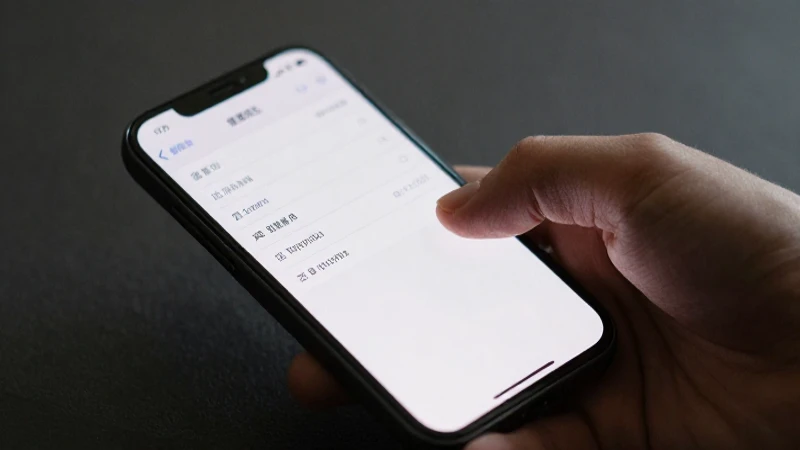
Now we reach a pivotal point in the configuration of your APN US H2O Wireless APN settings for iPhone: inputting the correct APN details. Below, you will find the required values that you need to input in their designated fields:
APN Settings
- APN: h2owireless
- Username: leave blank
- Password: leave blank
- MMSC: http://mmsc.mobile.att.net
- MMS Proxy: proxy.mobile.att.net
- MMS Port: 80
- Authentication Type: leave blank
- APN Type: default,mms,supl
- IPv4/IPv6 Protocol: IPv4
- Bearer: Unspecified
Make sure to fill in the fields accurately as any inaccuracies can prevent you from utilizing data services effectively. Careful attention to this detail is crucial, especially the APN field, which is paramount for initiating your system’s connection.
Step 4: Saving Your Settings
After inputting all the necessary fields, make sure to save your input. Look for a Save option—sometimes it’s a simple back button or a done button that will store the APN settings you’ve just configured effectively. Ensuring that the settings are saved is a critical step, as failure to do so may result in the settings reverting to defaults.
Step 5: Restart Your iPhone
The final step in this process is to restart your iPhone. This might seem insignificant, but rebooting your device is essential to allow your iPhone to recognize and initialize the new APN settings. To restart your device, hold down the power button until you see the “slide to power off” slider, slide it to turn off your iPhone, then turn it back on by pressing the power button again. After the device has powered up, you should be fully equipped with the proper APN US H2O Wireless APN settings for iPhone.
Troubleshooting Common APN Issues
Problem 1: Inability to Access Mobile Data
A common issue that arises post-configuration is the inability to access data services. If you find yourself in this situation, the first thing to do is double-check the APN settings you have inputted. Ensure that every field is filled out correctly. Additionally, make sure that you have a cellular data plan activated and that your account with H2O Wireless is active.
Problem 2: Issues with MMS Functionality
Having trouble sending or receiving multimedia messages (MMS) is another frequent concern users face. Ensure that your MMSC and MMS proxy details are entered accurately. An incorrect MMSC link or proxy can lead to these functionalities being non-operational. If after checking and correcting the settings the problem persists, you may want to contact H2O customer service for further assistance.
Problem 3: Slow Mobile Data Speeds
Slow data speeds can be frustrating, especially after configuring your settings correctly. Several factors can contribute to reduced speed, including network congestion, your device’s location, or even the plan you are currently subscribed to. Make sure that your device is in an area with good H2O Wireless coverage. Sometimes resetting the network settings under Settings > General > Reset may help restore better speeds as well.
When to Contact Customer Support
If you have followed all the steps and made sure that every input is correct yet you still encounter connectivity issues, it may be time to reach out to H2O Wireless customer support. They have resources and tools to check on your account status and network configurations, which can be instrumental in diagnosing the issue. Before calling, gather your account details, phone model, and any error messages you may be experiencing to facilitate a smoother resolution process.
General Tips for Maintaining APN Settings
To ensure your APN US H2O Wireless APN settings for iPhone continue working efficiently, consider implementing the following tips:
- Regularly Update Your Device: Keeping your iPhone updated ensures that you have the latest improvements and fixes from Apple which may, in turn, improve how APN settings interact with the network. Navigate to Settings > General > Software Update to periodically check for available updates.
- Backup Current Settings: Before making changes to your APN settings, consider taking a screenshot of your current settings for easy recovery after troubleshooting.
- Monitor Data Usage: Regularly review your data usage under Settings > Cellular to ensure that your internet connection is functioning as expected, and that no unusual spikes in data usage occur.
Additional Resources
If you are looking to further your understanding of APN settings, mobile data, or general device troubleshooting, there are numerous resources available online. These can range from forums where users share their experiences, to troubleshooting guides provided by manufacturers and carriers. Utilizing these can significantly enhance your knowledge and capabilities.
The Importance of APN Settings for Future Users
As mobile technology continues to evolve, the importance of APN settings will remain paramount for effective communication. By understanding and maintaining corrections to your APN US H2O Wireless APN settings for iPhone, you are not just ensuring seamless connectivity for yourself but also contributing to the overall performance of mobile networks. Users who are educated about their device settings can significantly enhance their user experience while mitigating common issues related to connectivity.
In conclusion, mastering the APN US H2O Wireless APN settings for iPhone is essential for any user wishing to optimize their mobile device’s capabilities. This extensive guide has provided you with detailed instructions on how to configure these settings, troubleshoot common issues, and maintain connectivity effectively over time. By adhering to the information shared in this guide, users can enhance their iPhone experience while navigating H2O Wireless services. Whether you are new to H2O Wireless or have been a long-time customer, understanding APN settings will empower you to make the most of your device.