In the fast-evolving world of mobile technology, having the right APN (Access Point Name) settings is crucial for ensuring seamless connectivity and internet access on your device. If you are using a Windows Phone and are looking to configure your APN for the Mobilicity network in Canada, you have come to the right place. This article will give you detailed instructions on how to set up your APN settings, address potential issues you may face, and provide answers to frequently asked questions. By the end, you will be fully equipped to optimize your internet experience on Mobilicity’s network.
How to Access APN Settings on Windows Phone
Setting up your APN settings on a Windows Phone is a straightforward process, but it may vary slightly based on the version of your operating system. Here’s how you can access and modify your APN settings:
1. Navigate to Settings
Begin by unlocking your Windows Phone and locating the Settings icon on your home screen. This is typically represented by a gear symbol. Tap on it to enter the settings menu.
2. Go to Network & Wireless
Within the Settings menu, scroll down until you find the section labeled Network & Wireless. This section contains various options related to mobile data, Wi-Fi, and network connections.
3. Tap on Mobile & SIM
In the Network & Wireless menu, select the option titled Mobile & SIM. This will take you to a new screen where you can manage your SIM settings and data connectivity.
4. Access APN Settings
Now, look for a submenu called APN (Access Point Name). If it is present, tap on it to view the current settings. If this option does not appear, it may be due to your phone not supporting custom APN configurations.
APN Settings for Mobilicity
With a solid understanding of how to access your APN settings, it is time to input the specific APN Canada Mobilicity APN settings for Windows Phone. Below are the required settings you need to enter:
- APN: internet.com
- Username: (leave it blank)
- Password: (leave it blank)
- MMSC: http://mmsc.mobile.on.ca
- MMS Proxy: 74.49.0.18
- MMS Port: 80
- MCC: 302
- MNC: 320
- Authentication Type: None
- APN Type: default,mms,supl
Entering the APN Settings
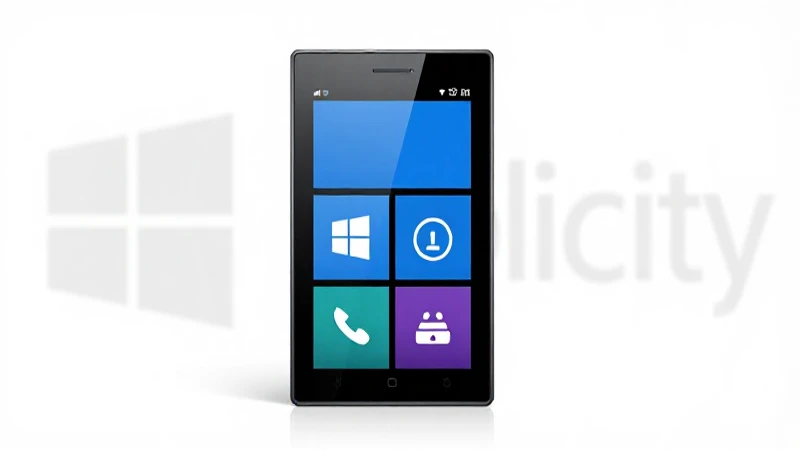
Now that you have the settings, let us proceed with entering them:
1. Input the APN Address
Begin with the APN field. Enter the address internet.com. This is the primary configuration that allows your device to connect to Mobilicity’s data network.
2. Leave Username and Password Blank
In the fields for Username and Password, leave these blank as Mobilicity does not require them for basic data access.
3. Set the MMSC
Next, enter the MMSC value as http://mmsc.mobile.on.ca. This is important for sending multimedia messages (MMS) using the Mobilicity network.
4. Configure MMS Proxy and Port
For both MMS Proxy and MMS Port, use 74.49.0.18 and 80 respectively. This configuration is essential for the proper routing of MMS messaging.
5. Fill in MCC and MNC
Enter MCC as 302 and MNC as 320. These numbers uniquely identify the Mobilicity network within Canada, ensuring that your device can connect properly.
6. Authentication Type
Set the Authentication Type to None. This is standard for Mobilicity users, as no additional authentication is required.
7. APN Type
Finally, make sure to set the APN Type as default,mms,supl to support all necessary types of data traffic on the Mobilicity network.
Saving and Activating Your APN Settings
Once you have filled in all the necessary fields, it is crucial to save and activate your APN Canada Mobilicity APN settings for Windows Phone. Here’s how to do it:
1. Save Your Settings
Look for a Save button or icon, usually represented by a diskette symbol. Make sure to tap this to save the settings you have just entered. Failing to save may mean that your changes do not take effect.
2. Restart Your Device
After saving your APN settings, it is generally a good practice to restart your Windows Phone. This allows the operating system to refresh and apply the new settings throughout the system, ensuring that everything functions properly.
Troubleshooting Common APN Issues
Even with the correct settings in place, you may encounter connectivity issues. Below are some common problems users face with APN settings on Windows Phone, along with solutions:
1. Unable to Access the Internet
If you find that mobile internet is still not working after setting up your APN, there are a few things to check. First, ensure that your mobile data is turned on in the Network & Wireless settings. Additionally, double-check each field to make sure there are no typos or incorrect values.
2. MMS Messaging Not Sending
For users experiencing issues with sending or receiving MMS messages, ensure that the MMSC, MMS Proxy, and MMS Port are set exactly as listed. A small error in these settings can lead to messaging failures.
3. Slow Data Speeds
If your internet connectivity seems slow or unreliable, it could be a network issue rather than a problem with your APN settings. Try rebooting your device, or toggle Airplane Mode on and off. This can sometimes resolve network issues.
4. Constantly Losing Connection
Frequent disconnections on your mobile network could indicate a weak signal in your area. Ensure that you are in an area with good coverage, as poor reception can affect your connectivity regardless of your APN settings.
Additional Tips for Optimizing APN Settings
Here are some extra tips to ensure you’re getting the best performance from your Mobilicity connection on Windows Phone:
1. Regularly Check for Updates
Ensure that your Windows Phone is regularly updated to the latest software. Updates often include improvements and bug fixes that can enhance network performance and stability.
2. Monitor Data Usage
Keep an eye on your data usage via the data usage settings on your Windows Phone. This will help you spot any unusual spikes and take necessary actions such as adjusting your data plan if needed.
3. Use Data Saving Features
Many Windows Phones come with built-in data-saving features. Enable these settings to help manage your data usage more effectively, particularly if you have a limited plan.
Configuring the APN Canada Mobilicity APN settings for Windows Phone is a crucial step in ensuring you have a reliable and fulfilling internet experience on your device. By following the detailed instructions provided in this guide, you can easily set up your APN settings and troubleshoot common problems. Always remember to regularly check and update your settings if you encounter any issues. With the right configurations, you can enjoy seamless connectivity, fast data speeds, and efficient multimedia messaging on the Mobilicity network in Canada.