In today’s fast-paced digital world, having a reliable mobile data connection is crucial for users, especially those on the US Limitless Mobile network. This guide aims to provide an exhaustive look at the APN US Limitless Mobile settings, detailing the steps necessary to configure your mobile device for optimal performance, connectivity, and browsing experience. Whether you are a new user or looking to optimize your existing settings, this comprehensive article covers everything you need to know about the APN setup process, troubleshooting common issues, and more.
Default APN Settings for US Limitless Mobile
Initial Setup for Android Devices
To set up the APN US Limitless Mobile on your Android device, follow these steps:
- Open the “Settings” app on your Android phone.
- Scroll down and select “Network & internet.”
- Tap on “Mobile network.”
- Find and select “Advanced” and then tap on “Access Point Names.”
- Tap on “Add” or the ‘+’ icon to create a new APN entry.
Entering APN Details
Once you are in the APN section, it’s time to enter the settings specific to US Limitless Mobile. Make sure to fill out the following fields accurately:
- Name: Limitless Mobile
- APN: limitlessmobile.com
- Username: (leave blank)
- Password: (leave blank)
- MMSC: http://mmsc.seamless.com/mms
- MMS Proxy: 64.62.242.10
- MMS Port: 80
- MCC: 310
- MNC: 260
- Authentication Type: None
- APN Type: default,mms,supl
After entering these details, save the APN settings and select your newly created APN to activate it.
Configuration for iOS Devices
Setting up the APN US Limitless Mobile on iOS devices like iPhones also has a straightforward process. Here’s how to do it:
- Open the “Settings” app on your iPhone.
- Tap on “Cellular” or “Mobile Data.”
- Select “Cellular Data Options.”
- Tap on “Cellular Network.”
Inputting APN Information on iOS
On the Cellular Data section, input the same values as mentioned above for Android devices. Here’s a breakdown of what to enter:
- Cellular Data APN: limitlessmobile.com
- Username: (leave blank)
- Password: (leave blank)
- MMS APN: limitlessmobile.com
- MMSC: http://mmsc.seamless.com/mms
- MMS Proxy: 64.62.242.10
- MMS Port: 80
- MCC: 310
- MNC: 260
After you’ve filled in these fields, be sure to exit Settings. Your changes will be saved automatically.
Troubleshooting Common APN Issues for US Limitless Mobile
Unable to Connect to the Internet
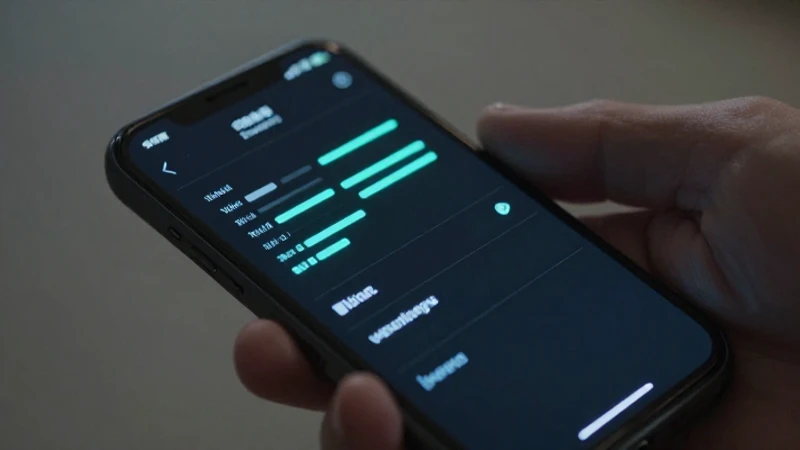
If you find yourself unable to connect to the internet, it may often be due to incorrect APN settings. Double-check to ensure that all entries conform to the proper configuration specified for APN US Limitless Mobile. Resetting your network settings might also help rectify connectivity issues. You can do this by going to “Settings” > “System” > “Reset options” for Android, or “Settings” > “General” > “Reset” for iPhones.
MMS Not Functioning Correctly
MMS functionality can be particularly sensitive to APN settings. If you can’t send or receive MMS messages, verify that the MMSC, MMS Proxy, and MMS Port are correctly inputted as per the required specifications for US Limitless Mobile. Often, these settings are the key to resolving MMS issues. Ensure mobile data is turned on as well, as MMS requires a data connection.
Slow Data Speeds
Experiencing slow data speeds can be immensely frustrating, especially if you rely heavily on mobile browsing. There can be several reasons for this, including congested network traffic or inappropriate APN settings. Check if the data type is set to ‘LTE’ or ‘HSPA’ within your network settings for US Limitless Mobile. If you’ve ensured that the APN settings are correct yet the issue persists, contacting your service provider for network-related support may also be beneficial.
Updating APN Settings for Network Changes
Importance of Regular APN Updates
Mobile networks optimize and upgrade their infrastructure regularly, which can lead to changes in APN configurations. Staying informed about any updates related to US Limitless Mobile is vital. Regularly checking official communications or the service provider’s website can keep you in the loop regarding necessary APN modifications.
How to Find Updated APN Settings
To find the latest APN settings, visit the official US Limitless Mobile website or contact customer support. Additionally, forums and social media groups dedicated to mobile users may provide insights on common APN updates or issues that others are facing. Always ensure to use verified and official sources to prevent erroneous configurations.
Comparing APN Settings Across Different Carriers
APN Settings for Competitors
Understanding the differences in APN settings across various mobile carriers can provide better insight into optimizing your mobile experience. For instance, AT&T, Verizon, and T-Mobile each have unique configurations. While the basic fields like APN and username remain standard, settings like MMSC and Proxy may vary significantly. This is why users often feel compelled to research thoroughly and make side-by-side comparisons to ascertain the best configs for US Limitless Mobile against competitors.
When to Consider Switching Carriers
If you’ve consistently encountered problems with your internet connectivity, slow speeds, or other issues despite correct APN setups, it might be time to consider switching carriers. A potential change could lead to better services and APN settings that enhance your mobile experience. Evaluate other networks and their offerings before making a commitment, ensuring that the new carrier provides satisfactory coverage in your area.
In conclusion, configuring the APN US Limitless Mobile settings is essential for anyone who wants to enjoy a seamless mobile data experience. From initial setups to troubleshooting and adapting to network changes, understanding these settings is crucial for optimal connectivity. With careful attention to detail, users can significantly enhance their mobile experiences. By following the comprehensive guidelines offered in this article, you can ensure that your devices are correctly configured and functional, allowing you to leverage the full potential of the US Limitless Mobile network. Always stay informed and proactive about settings adjustments, and don’t hesitate to seek professional help if issues arise.